Display Pages in UMG
MarkupUIWidget is a UMG widget that hosts a Markup UI page. You can add it to a Widget Blueprint alongside other UMG widgets. For the steps to create the interface and add it to the Viewport, see Your First In-Game UI.
UMarkupUIWidget
UMarkupUIWidget inherits from UWidget and displays a Markup UI page in a UMG interface.
- Type: Class
- Parent class:
UWidget - Header file:
UMG/MarkupUIWidget.h - Include:
#include "UMG/MarkupUIWidget.h"
class UMarkupUIWidget final : public UWidget
Inheritance runs from UObject → UVisual → UWidget → UMarkupUIWidget.
Properties
Select MarkupUI Widget in the Widget Blueprint Designer and configure its properties under Details → MarkupUI.
| Properties | Type | Description | Default value |
|---|---|---|---|
| Document | UHtmlDocument* |
The HTML document asset used by the control. Readable in the blueprint | Empty |
| Desired Size | FVector2D |
The desired size requested by the control to the parent container. Readable and settable in the blueprint | 640 × 480 |
Document Selects the HTML document asset to be imported. The control creates and synchronizes properties when this document is opened. If no document is selected, the control will not automatically display the page.

Events
| Events | Type | Description |
|---|---|---|
| On Document Ready | FMarkupUIDocumentReady |
Triggered when the page is ready and elements are accessible. Can be bound in the blueprint |
Waiting for the page to be ready
It is necessary to wait for the On Document Ready event to trigger before safely accessing page elements. Otherwise, the page elements are unavailable.
Functions
The following are the public functions of UMarkupUIWidget itself.
| Function | Description |
|---|---|
OpenDocument(UHtmlDocument* NewDocument) |
Open the HTML document asset |
OpenDocument(const FString& Html, const FString& NewDocumentUri = FString()) |
Open an HTML string and optionally specify its document URI |
CloseDocument() |
Close the current page |
SetDataContext(UObject* DataContext, EMarkupUIReferenceMode ReferenceMode = EMarkupUIReferenceMode::Weak) |
Set the default data context. The weak reference is used by default |
SetDataContext(const TSharedPtr<MarkupUI::Binding::IObject>& DataContext) |
Use the interface object to set the default data context |
ResetDataContext() |
Clear the default data context |
SetNamedDataContext(const FString& Name, UObject* DataContext, EMarkupUIReferenceMode ReferenceMode = EMarkupUIReferenceMode::Weak) |
Set the named data context. Use a weak reference as the default |
SetNamedDataContext(const FString& Name, const TSharedPtr<MarkupUI::Binding::IObject>& DataContext) |
Use the interface object to set the named data context |
ResetNamedDataContext(const FString& Name) |
Clear the data context with the specified name |
GetRootElement() |
Obtain the root element of the page |
CreateElement(const FString& Tag) |
Create elements based on the tag name |
IsDocumentReady() |
Check whether the page is ready. |
Call these functions on a MarkupUI Widget reference.
| Function | Description |
|---|---|
| Set Data Context | Set the default data context. The weak reference is used by default |
| Reset Data Context | Clear the default data context |
| Set Named Data Context | Set the named data context. Use a weak reference as the default |
| Reset Named Data Context | Clear the data context with the specified name |
| Get Root Element | Obtain the root element of the page |
| Create Element | Create elements based on the tag name |
| Is Document Ready | Check whether the page is ready. |
Open Document, Open Document (Html), and Close Document are independent asynchronous blueprint nodes that act on this control. The usage of these nodes is described in the "Opening and Closing Pages at Runtime" section below.
The above list the properties, events, and functions defined by the control itself. Inherited members can still be used in the way of Unreal Engine.
Widget Size
Desired Size is the desired size provided by the control to the parent container. The final size is not guaranteed. The actual display area is determined by the parent container, layout rules, and available space.
- In Canvas Panel, the area occupied by the control can be set through anchors and offsets.
- In other UMG containers, the control can be adjusted according to the container's filling, alignment, and size rules.
- The percentages and layouts on the page are calculated relative to the control's page viewport. After changing the control's size, it is necessary to check whether the page content is still fully displayed.
The relationship between control size, DPI, and page scaling can be found in DPI and Scaling.
Open and Close Pages at Runtime
Use these Blueprint nodes to switch pages on an existing MarkupUI Widget during gameplay.
| Nodes | Functionality |
|---|---|
| Open Document | Open the specified HTML document asset |
| Open Document (Html) | Open an HTML string. Document Uri specifies the base URI for relative resource paths. |
| Close Document | Close the current page |
For example, obtain a reference to MarkupUI Widget in the Graph of the Widget blueprint. Call Open Document and pass in the target document asset. After processing,Close Document can be called. These nodes provide Completed and Failed pins to handle operation results.
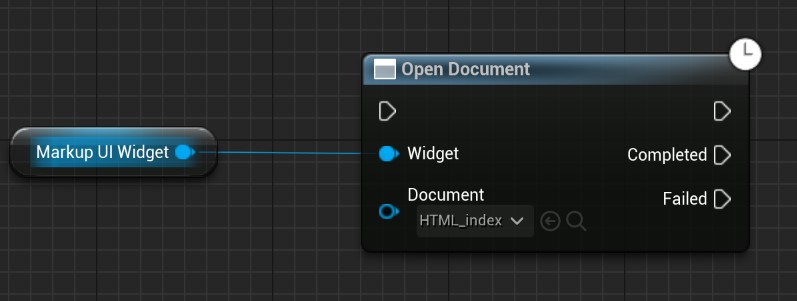
Document Open and Page Readiness
The Completed pin on Open Document indicates that the open request was accepted. Before accessing page elements, wait for On Document Ready or check Is Document Ready.
The resource path of the HTML document asset is determined based on its position in the Asset Directory. The root path / is searched from the globally configured Asset Directory. For detailed rules, see Working Directories.
Switching and reloading
By calling Open Document on the same MarkupUI Widget and passing another document asset, the page can be switched. Passing the current document asset will reload the page. For HTML strings, calling Open Document (Html) again using the current content and the required Document Uri will reload the page.
When opening a new page, the control will first close the current page. There is no need to call Close Document first. Switching or reloading will create a new page. Data that needs to be retained should be saved in the data context or other game objects, and the elements that need to be operated should be retrieved again after the new page is ready.
After modifying the files in the Design-Time Directory, synchronize them first with Asset Synchronization and save them, then reload the page. Synchronized assets will not automatically reload the displayed page.
Document Uri Format
When you open an HTML string with Open Document (Html), set Document Uri to give the string a virtual document location in the Asset Directory. The document directory becomes the base for resolving relative references to CSS, images, and other assets. Use this URI format.
markupui-asset:///<page-path-relative-to-asset-directory>
For example, if the Document Uri is set to markupui-asset:///pages/index.html, then the relative paths in the page are resolved starting from pages/:
<link rel="stylesheet" href="../styles/main.css">
This reference points to styles/main.css in the Asset Directory. The virtual document location is only used to determine the base address for resolving resource paths. There is no need to actually create an HTML document asset at this location.
The Document Uri can be left empty. In this case, the default memory address memory:///widget.html is used, and the Asset Directory is not used as the base address for the relative paths. When referring to assets in the Asset Directory, the markupui-asset:/// address should be set.
Data and interaction
Each control carries its own page instance. When the page requires game-related data, a default or named data context can be set on the control. Events in the page can be bound to commands provided by the context. For detailed operations, see Property Binding and Command Binding.
After the page is displayed, it is necessary to configure the input mode, mouse cursor, and focus of Unreal Engine according to the purpose of the interface. Whether the control is visible or capable of receiving input is different settings. Interactive behavior should be verified at runtime.
Troubleshooting
| Symptoms | Items to check |
|---|---|
| The control area is empty | Has Document been set, or does the node opening at runtime execute and connect to a valid document asset? |
| The page display is incomplete. | The dimensions, anchors, and offsets assigned to the parent container meet expectations. |
| The page has no styles or images. | Are the document and the referenced assets located within the Asset Directory, and are the path and naming rules correct? |
| The input box is not usable. | Does the control have focus? Are the game's input mode and cursor settings allowed for interface interaction? |
| It cannot be accessed immediately after opening. | Wait for On Document Ready, and check if the opening operation failed. |
You can check the document assets and perform resource diagnostics in Editor Preview.