Plugin Settings
In Unreal Editor, open Edit → Project Settings → Plugins → Markup UI, and configure resources, logging, rendering, threading, and tracing options. The following default values apply to the plugin’s default configuration. Engineers can override these values.
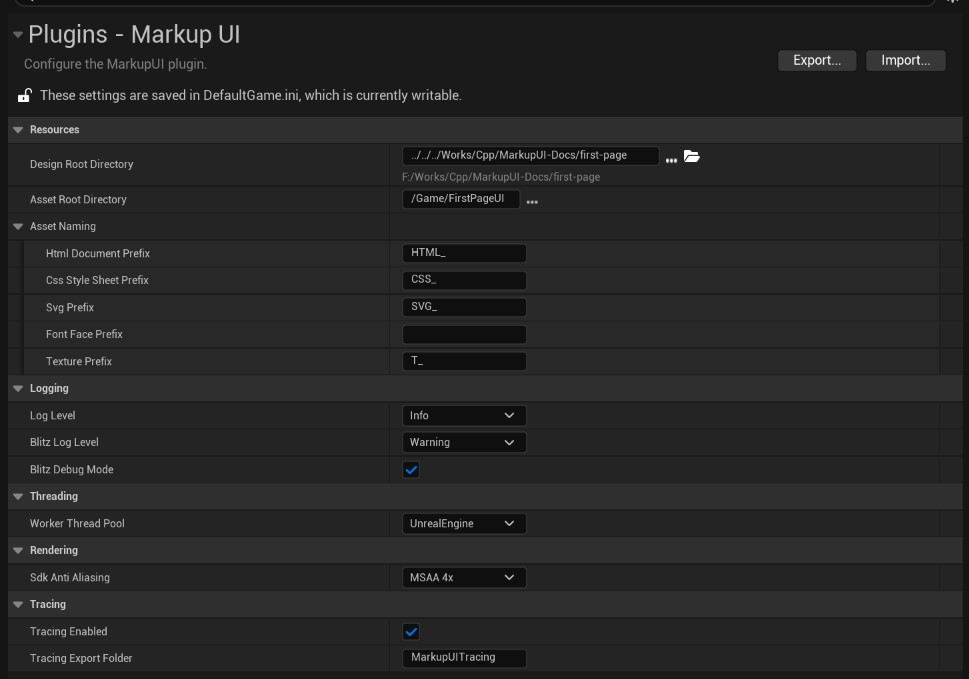
The screenshot shows an example of a project’s configuration. Some options differ from the default values.
Working Directory and Asset Naming
These settings determine where the design files are imported, where the assets are stored, and how the plugin searches for assets based on file names.
Design-Time Directory
Design Root Directory stores HTML, CSS, images, and font source files used for editing. Relative paths are calculated from the Unreal Engine project directory. Absolute paths can also be used. The default value is MarkupUIDesign.
Asset Directory
Asset Root Directory Saving assets after importing them into the Unreal Engine project, for asset previewing and loading during game operation. The default value is /Game/Assets/MarkupUI Corresponding to the project... Content/Assets/MarkupUI/.
After the modification, the newly opened or reloaded pages use the new configuration. Pages that have already been opened require reloading. There is no need to restart the editor.
Asset naming
Asset Naming Setting up the use of plugins Import Design Folder Functional synchronization Design-Time Directory Automatically adding a prefix to the generated assets. These rules are also used when the plugin references assets on the page:
| set | File type | Default prefix |
|---|---|---|
| Html Document Prefix | HTML document | HTML_ |
| Css Style Sheet Prefix | CSS style sheet | CSS_ |
| Svg Prefix | SVG image | SVG_ |
| Font Face Prefix | ttf, otf fonts |
Empty |
| Texture Prefix | Text images such as PNG, JPEG, etc. | T_ |
For example, under the default rules, pages/index.html is imported as an HTML_index document asset under pages. In HTML and CSS, the path and file name of the source file are still used. The plugin searches for assets according to the configured rules.
Modify the asset naming rules
Modifying the prefix does not automatically rename existing assets. Pages that are opened or reloaded use the new rules. Please adjust the existing assets accordingly or reimport them, and ensure that the page resources can still be found. Leaving the prefix empty means that no prefix will be added. The prefix must be a valid Unreal asset name character, and must not contain path separators.
Logs and diagnostics
These settings control the level of detail in log output, as well as whether the call stack is included when troubleshooting issues.
Log level
Log Level controls the minimum output level for the Markup UI plugin and runtime logs. The default is Info. Options include Debug, Info, Warning, Error, and Off. Off disables normal log output. Changes take effect immediately in the editor.
Page processing log level
Blitz Log Level Controlling the lowest level of processing related logs. Default value Warning, optional Debug, Info, Warning and Error It is also subject to Log Level restrictions: The actual output will not be more than Log Level detailed;Log Level for Off It will not be output at all. The changes take effect immediately in the editor.
Debug the call stack
Blitz Debug Mode Controls whether the native call stack is attached to relevant warnings and errors. It is disabled by default. Even after enabling it, it will still be filtered by the log level. The changes take effect immediately in the editor.
Background Worker Thread
This setting determines the thread pool used by the plugin to perform background tasks.
Worker Thread Pool
Worker Thread Pool - Select the thread pool used to perform background tasks. Default value: UnrealEngine
- UnrealEngine: Using the shared worker thread pool of Unreal Engine.
- MarkupUI: Use the dedicated worker pool for Markup UI.
The changes will take effect only after restarting the editor or the application.
Page Anti-Aliasing
This setting controls the anti-aliasing effect at the edges of the page.
Multi-Shading
Sdk Anti Aliasing sets the multi-shading anti-aliasing used for page rendering. The default value is MSAA 4x. Optional options include Disabled, MSAA 2x, and MSAA 4x. The sampling level affects the edge smoothing effect and rendering overhead. It should be tested on target devices.
The changes will take effect only after restarting the editor or the application.
Performance Tracking
These settings control Performance Tracking and the location where tracking files are saved.
Telemetry Signals
Telemetry is disabled by default. You can check the following options individually in the editor.
| Configuration Values | Corresponding Options | Current Behavior |
|---|---|---|
1 |
Tracing | Enable performance tracing. |
2 |
Metrics | In the console, enter stat MarkupUI to view UI queue and binding batch processing statistics. |
The changes will take effect only after restarting the editor or the application.
Specify the save location for the trace file
Tracing Export Folder specifies the export directory for the trace file. The default value is MarkupUITracing. The relative path is calculated from the project's Saved/ directory. Therefore, the default location is Saved/MarkupUITracing/. You can also use an absolute path. Leaving this field empty means that no files will be captured.
The changes will take effect only after restarting the editor or the application.
Complete the configuration
After configuring Design-Time Directory and Asset Directory, you can import the page into the game and display it in the game. Your First In-Game UI