Installation and Project Setup
Markup UI integrates into Unreal Engine as a plugin. Before installing it, check your engine version, target platforms, and required build toolchains.
System Requirements
Supported platforms include:
- Windows (Win64)
- Android (ARM64)
- iOS
- macOS
Unreal Engine
The plugin supports Unreal Engine 5.5 through 5.8. Choose the distribution that matches your project's engine version and keep the platform files supplied with it.
The plugin depends on Unreal Engine's SVG Importer. Unreal Engine handles the dependency when you enable Markup UI.
Windows
- System and architecture require 64-bit Windows. The editor and target project must also meet the requirements of your Unreal Engine version.
- Build tools include the Visual Studio version, MSVC C++ toolchain, and Windows SDK supported by your Unreal Engine version. Select the Game development with C++ workload when installing Visual Studio.
- UE 5.8 requirements include Visual Studio 2022 17.14 or later, MSVC 14.38 or later, and Windows SDK 10.0.22621.0 or later. Epic recommends Visual Studio 2026 and MSVC 14.50 for general UE 5.8 development.
The versions above apply to UE 5.8. The UE 5.5.4 plugin development environment was verified with MSVC 14.38.33130. For other engine versions, check the corresponding Epic documentation. Windows Hardware and Software Specifications · UE 5.8 Platform SDK Versions
Android
The Android plugin supports ARM64 (arm64-v8a). Install Android Studio and the Android SDK, NDK, and JDK required by your Unreal Engine version.
| Unreal Engine | Android Studio | Android SDK | Android NDK |
|---|---|---|---|
| 5.5 | Koala 2024.1.2 | SDK 34 recommended and required for compilation | r25b |
| 5.6 | Koala 2024.1.2 | SDK 34 recommended and required for compilation | r27c |
| 5.7 | Koala 2024.1.2 Patch 1 | SDK 35 recommended | r27c |
| 5.8 | Koala 2024.1.2 Patch 1 | SDK 35 recommended, SDK 34 minimum for compilation | r27c |
The compile SDK, target SDK, and minimum SDK for installation are separate settings. When publishing, also check the requirements of the target store. Epic Android Development Requirements
Android Architecture
Build the project for ARM64 only. Select ARM64 in the project's Android build settings and confirm that the plugin distribution includes the corresponding platform files.
macOS
Install the macOS and Xcode versions required by your Unreal Engine version.
| Unreal Engine | Minimum macOS | Minimum Xcode |
|---|---|---|
| 5.5 | macOS Ventura 13.5 | Xcode 15.2 |
| 5.6, 5.7 | macOS Sonoma 14.0 | Xcode 15.2 |
| 5.8 | macOS Sonoma 14.5 | Xcode 26.0 |
The table lists Epic's minimum versions for macOS development. UE 5.8 requires a compatible version of Xcode other than 26.4. See Epic's requirements for recommended versions and supported hardware. Epic macOS Development Requirements
iOS
To build for iOS, use the macOS and Xcode versions required by your Unreal Engine version and configure Apple development certificates, provisioning profiles, and device signing. When developing on Windows, use Unreal Engine's remote build workflow to connect to a Mac.
| Unreal Engine | Xcode version listed by Epic |
|---|---|
| 5.5 | Xcode 15.2 |
| 5.6 | Xcode 16 |
| 5.7 | Xcode 16 |
| 5.8 | Xcode 26 |
Check Epic's requirements for macOS, the iOS SDK, and devices. The remote build guide covers setup on Windows and Mac. Epic iOS Development Requirements · Remote Builds for iOS
Install the Plugin
- Close Unreal Editor.
- Copy the complete Markup UI plugin directory to
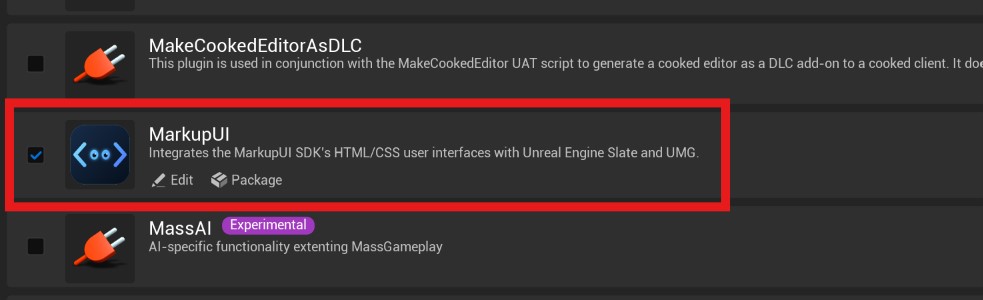
Plugins/MarkupUI/in the project. That directory should directly containMarkupUI.uplugin,Source/, and the platform files supplied with the distribution. - Open the project. In Unreal Editor, select Edit → Plugins, search for
MarkupUI, and enable the plugin. - Restart when prompted. If the editor prompts you to rebuild the plugin, confirm that the required C++ toolchain is installed and run the build.
MyProject/
  MyProject.uproject
  Plugins/
    MarkupUI/
      MarkupUI.uplugin
      Source/
      Resources/
Platform Files
The tree shows the main paths. Copy the entire distribution, including the libraries and resources required by your target platforms.
Verify the Installation
- After restarting the editor, open Edit → Plugins and confirm that
MarkupUIand SVG Importer are enabled. - Check that the Markup UI menu opens from the top of the Viewport.
Continue with Plugin Settings.