Asset Synchronization
Asset Synchronization will import or update the files in the Design-Time Directory to the Asset Directory of the Unreal Engine project, while maintaining the relative directory structure. The plugin generates asset names based on the asset naming rules.
Before Synchronization
- Configure the
Design-Time DirectoryandAsset Directoryin Edit → Project Settings → Plugins → Markup UI, and ensure that theDesign-Time Directoryexists. - Place the files that need to be imported in.
Design-Time DirectoryThe types of files supported and their corresponding assets can be found inWorking Directories. - Stop the playback and save the project assets that need to be retained.
Synchronize the design files
-
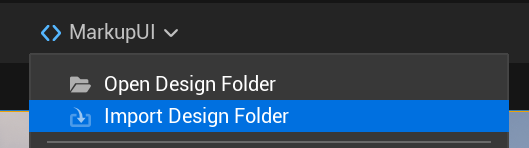
Open the Markup UI menu at the top of the Viewport, and select Import Design Folder.
-
In the synchronization window, check the
Design-Time DirectoryandAsset Directorydisplayed at the top. - In the file tree, select the files or folders that need to be synchronized. Only files that are supported will be listed in the window. Selecting a folder will include all the files within it.
- Click Start Sync, and wait for the synchronization to complete.
- Review the results and the reasons for any failures. Once everything is correct, click Close. Then, check and save the newly added or modified assets in the Content Browser.
Save the synchronization results
After the synchronization is completed, the imported or updated assets remain unsaved. Please check the results and save the assets that need to be retained. If the synchronization fails, the assets that have been successfully imported also need to be saved.
Synchronization results
| Status | Meaning |
|---|---|
| Added | Newly created corresponding assets |
| Modified | Updated existing assets |
| Unchanged | The file matches the imported content, no update is required |
| Failed | Import or update failed. Check the failure reason and Output Log in the window. |
The result list shows the file path and asset type. Files that do not support synchronization will not appear in the selection list, nor will they be imported. If two design files are mapped to the same asset name according to the current naming rules, synchronization will report a conflict and stop the import process. Re-run the process after renaming the conflicting files.
Synchronize again
After modifying HTML, CSS, images, or fonts in Design-Time Directory, save the source file and execute Markup UI → Import Design Folder again. Select the files that need to be updated, save the asset after confirming the results. Files whose content remains unchanged will be displayed as Unchanged.
Synchronization does not delete assets.
Synchronization only adds new assets or updates existing assets. After deleting files from Design-Time Directory, re-synchronizing will not delete the old assets in Asset Directory. Assets that are no longer needed should be handled manually in the Content Browser.
Synchronization updates engineering assets, but it will not automatically reopen the displayed pages. Please reload the page or restart the playback process before checking the changes.
Importing separately and re-importing
You can also drag files that support HTML, CSS, etc. into the Content Browser for import, or use Unreal Engine's re-import function for existing assets. When importing separately, it is necessary to place the assets in the corresponding locations of the Asset Directory, and ensure that the relative paths referenced on the page are consistent.
Common problems
| Symptoms | Check items |
|---|---|
| Unable to start synchronization | Whether the Design-Time Directory exists, whether the Asset Directory is valid, and whether the files are selected in the file tree |
| The file is not listed in the list. | Whether the file type is supported and whether the file is located in the Design-Time Directory. |
| An error message indicating asset name conflicts is displayed. | After checking the source files listed in the result and the current prefix rules, retry after adjusting the conflicting names. |
| There is no change on the page after synchronization. | Whether to save the asset and reload the page, and whether the reference paths of HTML and CSS are correct. |
| Some files failed to be imported. | Check the failure reasons and Output Log in the results to ensure that the target asset and source files are accessible |
For details on resource domains and path rules, refer to Working Directories. For information on importing and referencing images and fonts, see Images and Fonts.