Editor Preview
The HTML document asset editor provides page preview, source code viewing, and diagnostic information. You can check the pages after import before running the game.
Open the page preview
- Locate the imported HTML document asset in the Content Browser, such as
HTML_index. - Double-click the asset to open the HTML Editor.
- Select the Edit mode and check the page content, images, text, and layout in the Preview panel.
- Adjust the panel size to check the display effect of the page in different available regions.
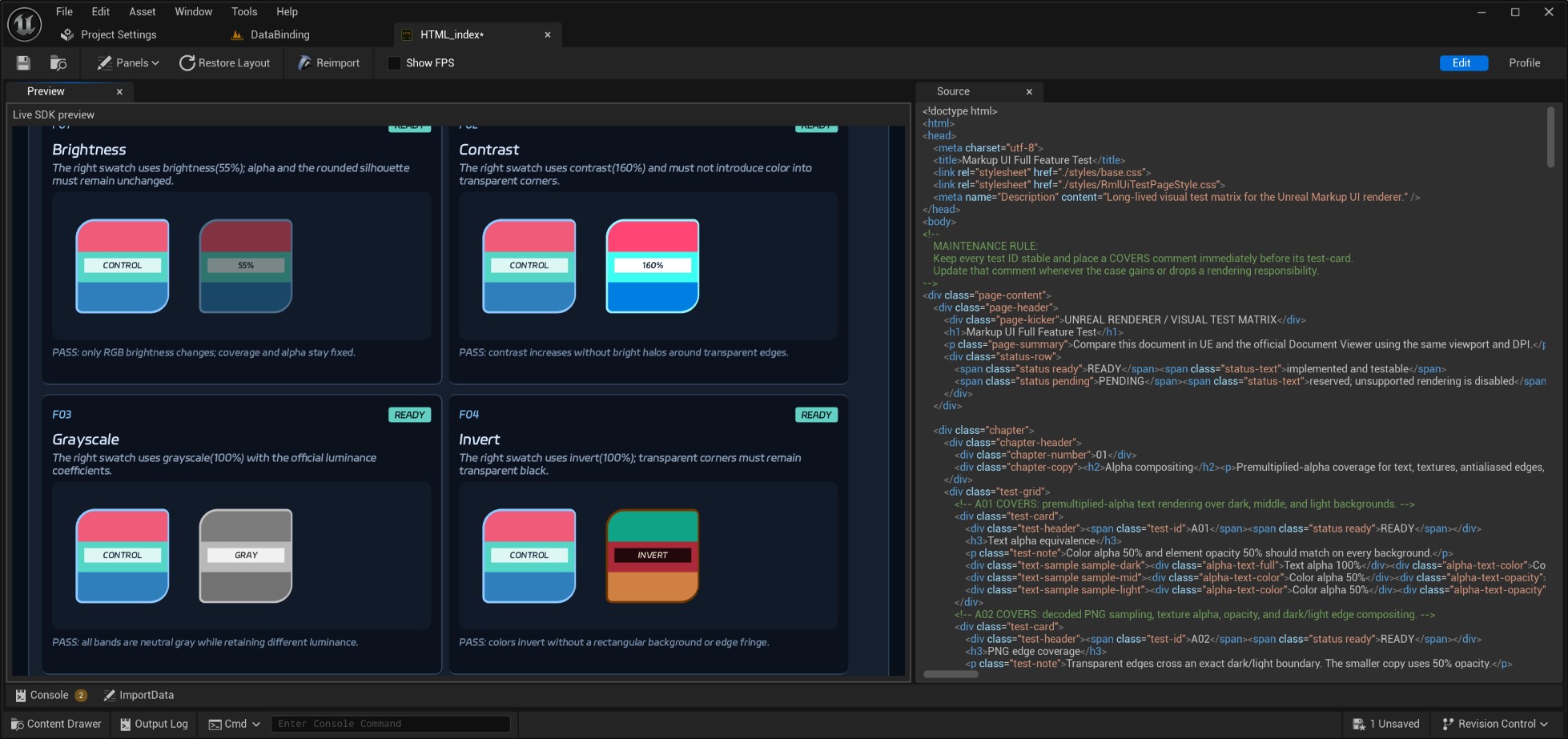
Preview using project assets
Preview assets loaded from the Asset Directory. Do not directly read the source files in the Design-Time Directory. If resources are missing, please check the corresponding assets and page reference paths.
Toolbar
The toolbar of the HTML Document Asset Editor provides the following functions:

- Save: Save the current asset.
- Browse to Asset: Content Browser .
- Panels: Display or hide panels such as preview, source code, trace, and console.
- Restore Layout: Restore the default panel layout of the current mode.
- Reimport: Reimport the current asset from the source file.
- Show FPS Displays the frequency and interval of repainting the preview.
- Edit: View page previews, source code, and diagnostic information.
- Profile: Perform performance sampling and trace analysis on the preview page.
Profile mode requires enabling tracking in the Plugin Settings and restarting the editor.Show FPS takes into account the impact of editor scheduling and throttling. It cannot be used directly as an indicator of page execution time or GPU usage.
View the source code and import information
- Source: View the source code imported into the current HTML document asset. This panel is read-only.
- ImportData Views the import information of the asset.
- Console: View the diagnostic information during the preview process. The panel can be displayed or hidden through the Panels menu.
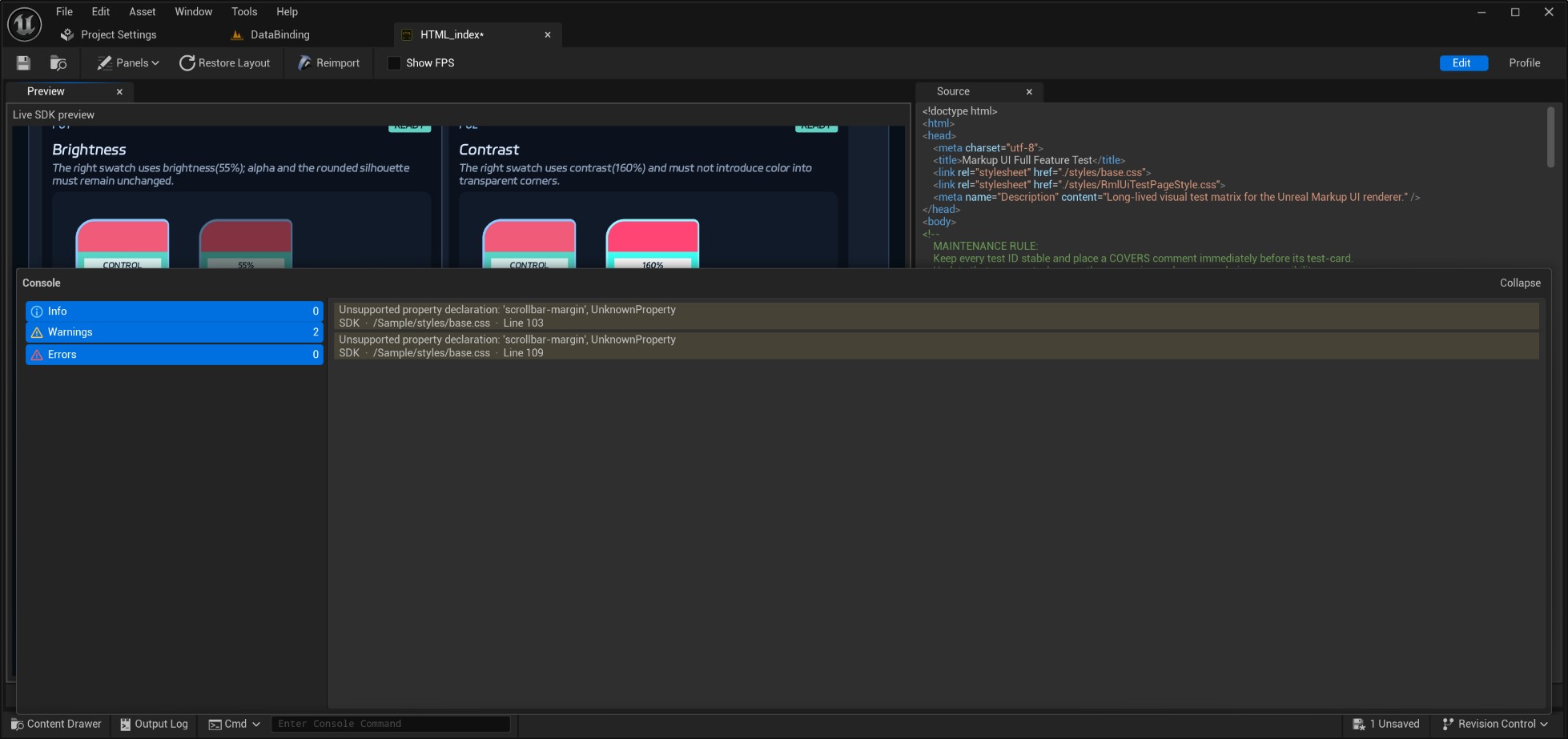
CSS style assets can also be opened by double-clicking. The imported CSS can be viewed in the Source tab. The page display effect should be checked by previewing the HTML document that references this style.
Update the preview
After modifying the source file, you can update the required assets through Asset Synchronization, or click Reimport in the HTML/CSS asset editor to reimport the current assets. After confirming the synchronization or reimport results, save the assets. Then open the HTML document for previewing. If the preview still shows old content, close the document and reopen it.
Scope of reimport
Reimport is applied to the currently opened asset. When there are multiple modifications to HTML, CSS, images, or fonts, use asset synchronization to select and update the relevant files.
Diagnosis and inspection
If the page does not display as expected, open Console and Output Log in Unreal Editor to check the resource paths and error messages in the prompts:
| Phenomenon | Check items |
|---|---|
| Unable to preview the document | Check whether the document assets are located within the configured Asset Directory, and review Output Log |
| Text is displayed but without any style | Has CSS been imported? Is the reference path consistent with the asset directory structure? |
| Images are not displayed | Do the image assets exist? Are the file names, extensions, and asset naming rules consistent? |
| Text appears as boxes. | Has the font been imported correctly? Is the font path correct? Does the font contain the required characters? |
| The old content still appears after modifications. | Should the assets be re-synced or re-imported and saved? Should the document preview be reopened? |
Previewing is done while the game is running
The asset editor is used to check the pages and resources. The sizes of controls, DPI, input, and business data in the game need to be verified on the actual interface. How to place pages on the game interface can be found in Your First In-Game UI.