VS Code Extension
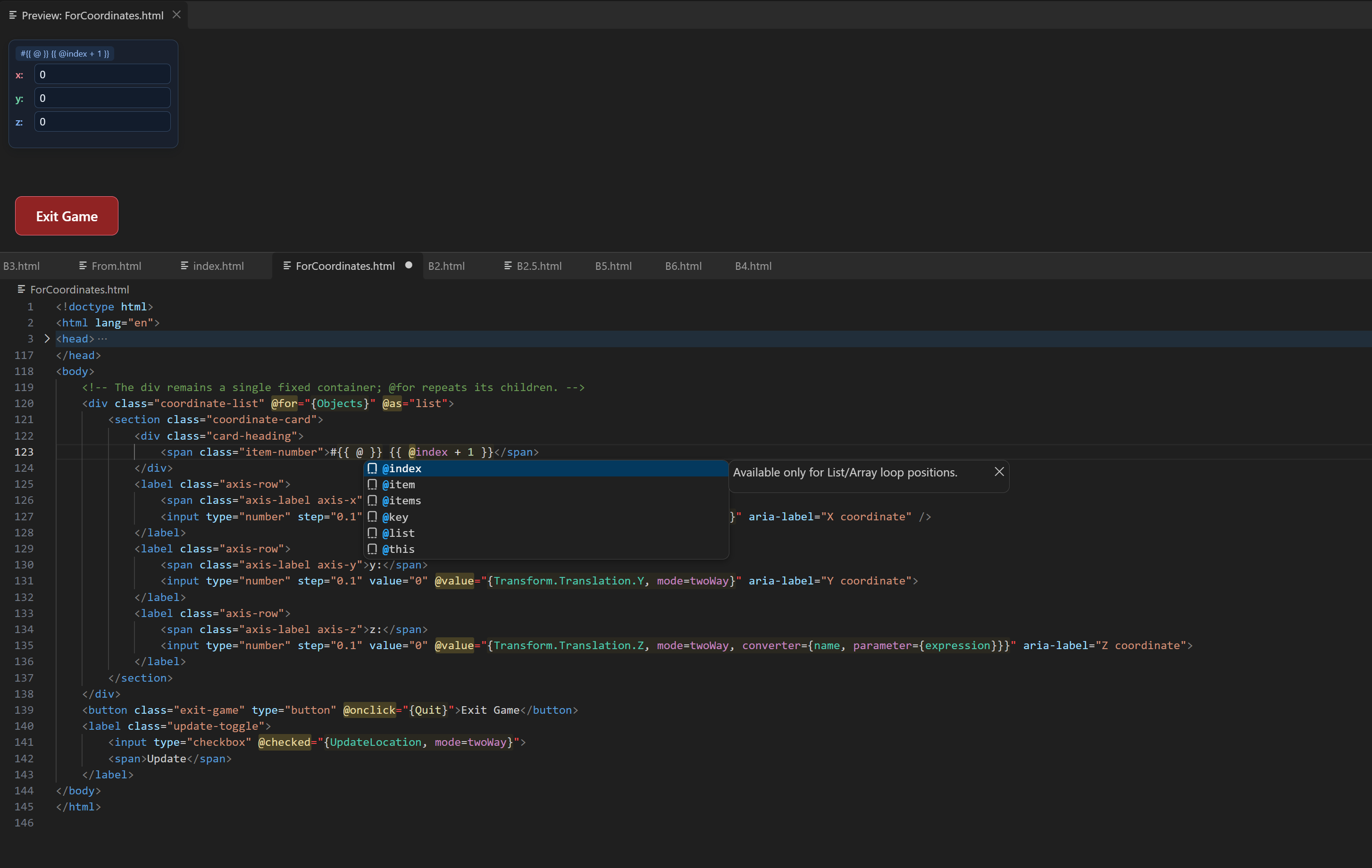
The VS Code plugin for Markup UI provides syntax highlighting, completion, hover explanations, diagnostics for HTML binding templates, as well as HTML/CSS preview capabilities.
Installation and enabling
- In the extensions view of VS Code, select Install from VSIX..., to install the provided
.vsixfile. - Open the workspace that contains the
Design-Time Directory. - Create a
.mk.htmlfile to automatically enable template support. If there is already a.htmlfile, you can use the command panel to execute MarkupUI: Enable Template Support.
Write binding templates
- Syntax highlighting: Distinguish between
@/mk:instructions, binding expressions, and ordinary HTML. - Completion: Enter
@ormk:to select an instruction, and complete the options, option values, and scope symbols in the binding. - Hover explanations and diagnostics: View the usage of instructions, and check common issues such as binding options, conditional branches, and scopes.
- HTML/CSS editing: Maintain the completion and hover explanations for HTML and CSS.
<p @text="{Name}">Player name</p>
<input @value="{Name, mode=twoWay}">
The plugin does not provide completion for member properties of business objects, and diagnostics do not replace runtime validation.
Preview HTML/CSS
Click the Preview Button in the upper right corner of the editor, or execute MarkupUI: Switch Preview. The preview is displayed above the code, following the current active HTML or template file. The preview automatically refreshes after editing the template. External CSS and image files also refresh after being saved.
Static Preview
The preview only shows HTML/CSS. Data binding, conditions, loops, commands, or page scripts are not executed. Text interpolation and placeholder content during design time are retained. Actual rendering and interaction should be verified in the platform plugin.
Virtual Root Path
The Design-Time Directory used for previewing is specified through markupui.preview.resourceRoot. Paths such as /styles/main.css and /images/a.jpg are resolved from this directory, rather than the current HTML directory.
For example, if the files in the workspace are located at ui/pages/index.mk.html, ui/styles/main.css, and ui/images/a.jpg, configure them in .vscode/settings.json:
{
  "markupui.preview.resourceRoot": "ui"
}
Templates can directly use the root path:
<link rel="stylesheet" href="/styles/main.css">
<img src="/images/a.jpg" alt="Player avatar">
- Relative Directory: Calculated based on the first top-level folder in the workspace, such as
ui. - Absolute Directory: Can directly specify the
Design-Time Directoryon this machine. - Leave Blank: Use the first top-level folder in the workspace. If the workspace is not opened, use the directory where the current file is located.
Relative paths in HTML are still calculated based on the directory where the HTML file is located. Relative paths in external CSS are calculated based on the directory where the CSS file is located. The virtual root path only affects the editor preview and does not modify the Asset Directory configured by the platform plugin.
Other preview options
| Settings | Purpose | Default value |
|---|---|---|
markupui.preview.allowRemoteResources |
Allows loading of remote images and fonts. Does not expand remote style sheets | false |
Unsaved documents can only be previewed with inline content. It is necessary to save local resources before referencing them. When resources are missing or the path is out of bounds, a message will be displayed in the preview area to indicate the reason.