Work with UI Elements
In addition to updating the interface through data binding, you can also directly access and manipulate elements on the page during game execution. For example, modifying prompt text, adjusting styles, dynamically adding content, or listening for button clicks. These interfaces are collectively referred to as DOM operations.
The DOM (Document Object Model) represents HTML pages as a tree of elements that can be accessed by programs. The way DOM operations are performed in Markup UI is similar to using JavaScript in a browser to find elements, modify content and styles, and listen for events. However, these operations are carried out using C++ or blueprint interfaces. The specific support scope is subject to the interfaces on this page. For more information on concepts and JavaScript examples, refer to the MDN DOM Documentation. For the current standards, see WHATWG DOM Standard.
Best practices
It is recommended to refresh the interface through data binding and property/collection change notifications. Direct manipulation of interface elements involves synchronization locks. Operations should be kept brief, and time-consuming logic or operations that take a long time should be avoided to prevent blocking of interface updates.
For content that continuously follows changes in game data, Property Binding is suitable. For button triggers that involve business functions, Command Binding can be used. Direct manipulation of elements is ideal for scenarios where precise control over a specific element is required. When the same content is modified both by binding and by code, subsequent binding updates may override the manually set values.
OnDocumentReady
All subsequent element operations must be performed after the document is ready. Only after the control's On Document Ready event is triggered can we obtain the root element, search for elements, modify content and styles, create elements, read and write control values, or register event listeners.
Completing the document opening operation does not mean the page is ready. The completion callback for opening the document should not be used instead of On Document Ready. After page switching or reloading, we should wait for the new document's readiness event before obtaining the elements on the new page and performing operations.
Bind the readiness event before opening the document, and output logs in the callback:
Use Bind Event to On Document Ready to bind custom events. Output logs using Print Text within the events.
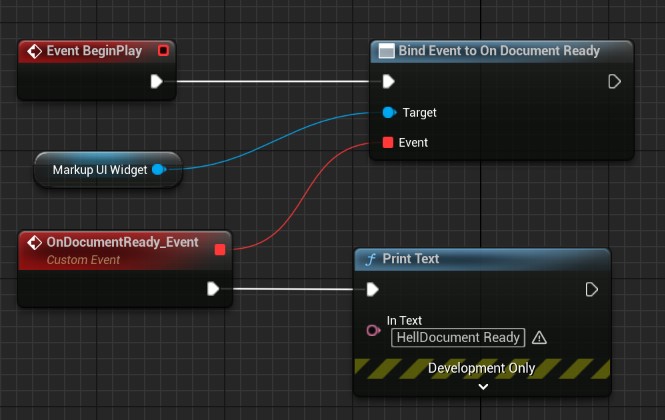
Bind the ready event before opening the document. The following code assumes that the HandleDocumentReady callback is defined in the current object:
Widget->OnDocumentReady.AddDynamic(this, &ThisClass::HandleDocumentReady);
Output logs in the callback. Subsequent element operations can also start from here:
UFUNCTION()
void HandleDocumentReady()
{
    UE_LOG(LogTemp, Log, TEXT("Document Ready"));
}
Obtain the element to be found
Get the root element through the control's GetRootElement() method, and then find the element that needs to be operated on.
For example, define a prompt element with an ID in HTML:
<p id="status">等待开始</p>
Find it through the ID after the page is ready:
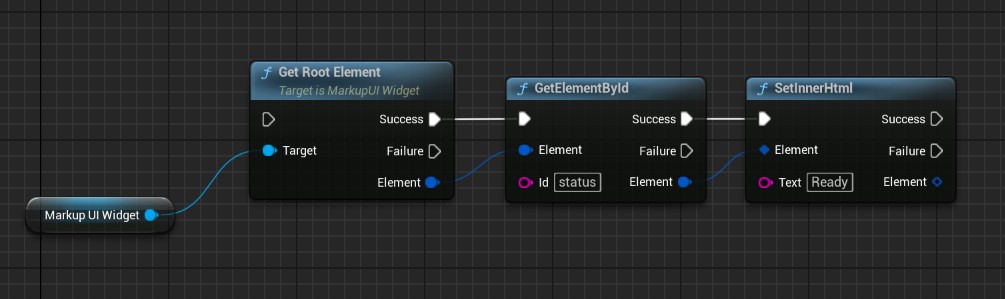
#include "UMG/MarkupUIWidget.h"
#include "Dom/MarkupDom.h"

// Widget points to the ready MarkupUI Widget.
FMarkupUIElement root = Widget->GetRootElement();
FMarkupUIElement status = root.GetElementById(TEXT("status"));
if (status.IsValid())
{
    status.SetInnerHtml(TEXT("Ready"));
}
| Operation | Interface |
|---|---|
| Search by ID | GetElementById |
| Search by CSS selector | QuerySelector, QuerySelectorAll |
| Search by class name | GetElementByClassName, GetElementsByClassName |
| Access parent and child elements | GetParent, GetChildren, GetChildCount |
| Find the closest ancestor element that matches the criteria | GetClosest |
After finding the elements, first check if they are IsValid(). After the page is closed, switched, or reloaded, the elements should be re-obtained from the new page. Do not continue using the elements from the old page.
Modify the content and appearance
Use SetInnerHtml to modify the internal content of the elements, use SetAttribute to modify properties, and use SetStyleProperty to modify styles:
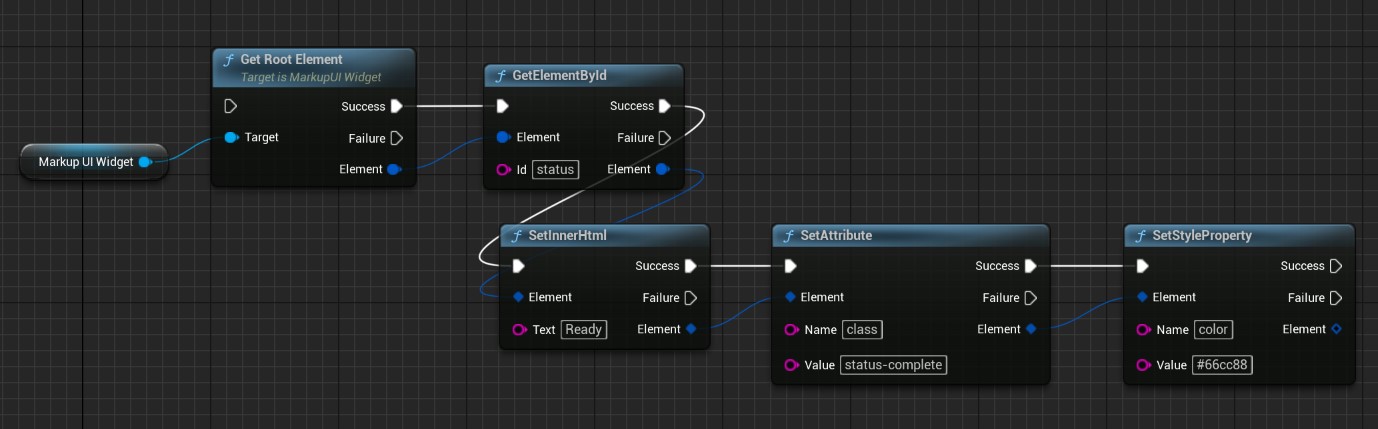
if (status.IsValid())
{
    status.SetInnerHtml(TEXT("Ready"));
    status.SetAttribute(TEXT("class"), TEXT("status-complete"));
    status.SetStyleProperty(TEXT("color"), TEXT("#66cc88"));
}
SetInnerHtml parses the content as HTML and replaces the original sub-content. When it is necessary to retain the sub-elements, do not use it to update the entire container. Use RemoveAttribute and RemoveStyleProperty to remove the corresponding settings.
Dynamically create and remove elements
Create elements through controls, and then add them to the containers in the page:
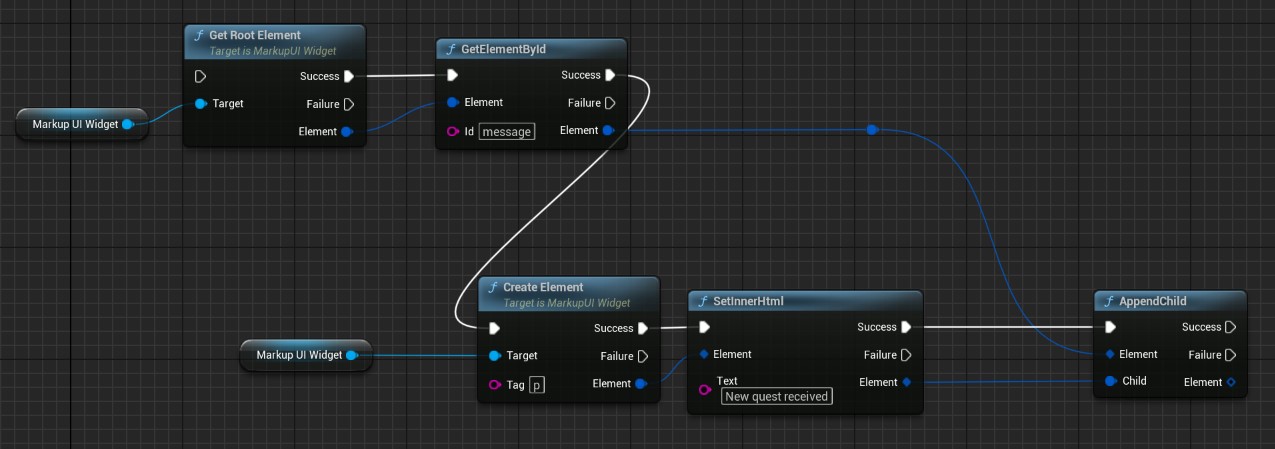
FMarkupUIElement list = root.GetElementById(TEXT("message"));
if (list.IsValid())
{
    FMarkupUIElement message = Widget->CreateElement(TEXT("p"));
    if (message.IsValid())
    {
        message.SetInnerHtml(TEXT("New quest received"));
        list.AppendChild(message);
    }
}
AppendChild is used to append elements to the end, InsertBefore is used to insert elements before a specified child element, and Remove is used to remove elements from the page. For lists generated by collection bindings, it is better to update the content by modifying the data collection instead of directly changing the elements generated by the binding.
Reading and setting control values
Special interfaces are provided for input boxes, text areas, drop-down menus, and forms. First, find the elements and then convert them into corresponding controls. When the element types do not match, the conversion result is invalid.
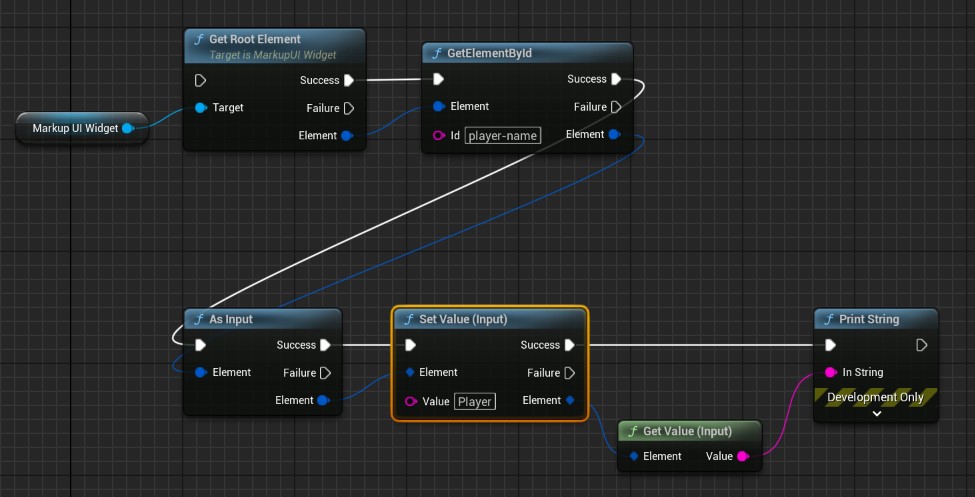
FMarkupUIInputElement nameInput = root.GetElementById(TEXT("player-name")).AsInput();
if (nameInput.IsValid())
{
    nameInput.SetValue(TEXT("Player"));
    FString name = nameInput.GetValue();
}
| Controls | Conversion and common operations |
|---|---|
| Input box | AsInput() Use it. GetValue / SetValue |
| Checkbox and radio buttons | AsInput() Use it. GetChecked / SetChecked |
| Text area | AsTextArea() Use it. GetValue / SetValue |
| Drop-down box | AsSelect() Use it. GetValue / SetValue |
| Form | AsForm() Use it. Submit / Reset |
When it is necessary to continuously write user input data into the game data, use Input and Two-Way Binding.
Listen for interface events
Elements provide event subscription interfaces such as OnClick, OnFocus, OnBlur, etc.. Input controls also provide OnInput, OnChange, and forms provide OnSubmit, OnReset. Register listening on the game thread, and the callback is also executed on the game thread.
Save the FMarkupUIEventSubscription returned during registration. Call Unbind() when listening is no longer needed. After page switching or reloading, find the element for the new page and establish listening again.
For example, listen for the button with the ID action-button. After clicking the button, log the event:
<button id="action-button">Click me</button>
Once the page is ready, find the action-button. Connect the custom event through OnClick, and save the returned subscription as a variable. In the callback, call Stop Propagation to prevent the event from propagating further. Then, use Print Text to output the log. When no longer needed to listen for the event, call Unbind DOM Event.
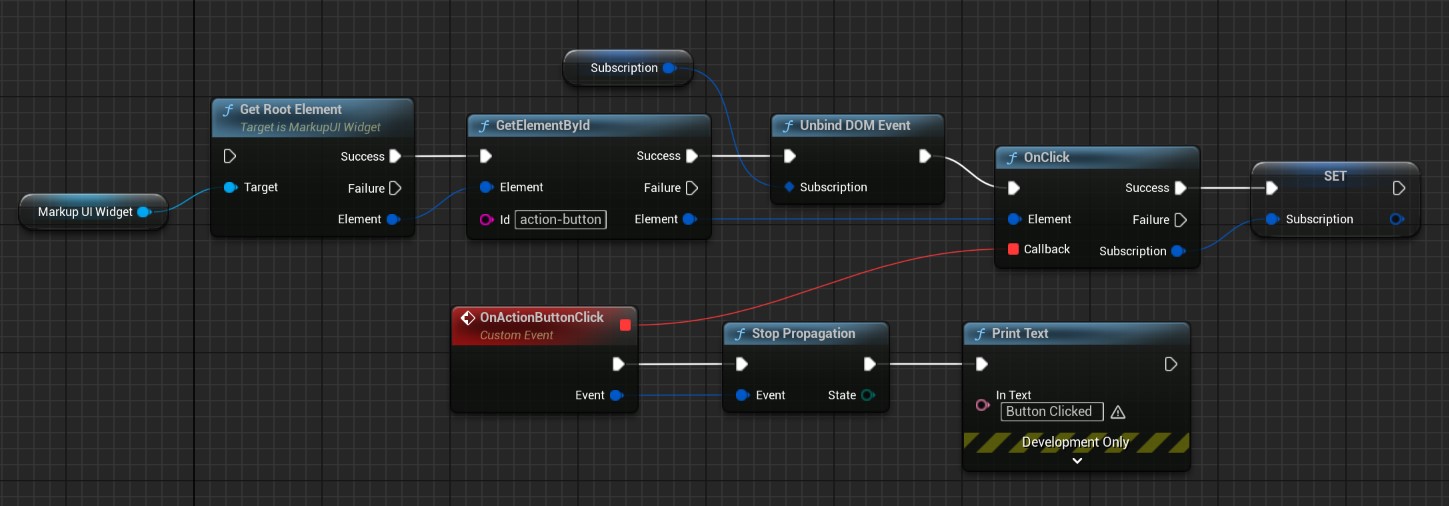
Register the listener after the page is ready. It is assumed that the current object has already declared the UFUNCTION callback HandleClick(const FMarkupUIPointerEvent& Event), and uses the member variable ClickSubscription to store the subscription:
FMarkupUIElement Button = Widget->GetRootElement()
    .GetElementById(TEXT("action-button"));
if (Button.IsValid())
{
    FMarkupUIPointerEventCallback Callback;
    Callback.BindDynamic(this, &ThisClass::HandleClick);

    // Remove the old subscription before registering again.
    ClickSubscription.Unbind();
    ClickSubscription = Button.OnClick(Callback);
}
Handle the click event in the HandleClick callback, and prevent the event from continuing to propagate to the parent element:
UFUNCTION()
void HandleClick(const FMarkupUIPointerEvent& Event)
{
    UE_LOG(LogTemp, Log, TEXT("Button clicked"));
    Event.StopPropagation();
}
Unbind the subscription when no longer needed to listen for the event:
ClickSubscription.Unbind();
The event parameters can provide information about the target element. Use StopPropagation when you need to prevent the event from continuing to propagate, and use PreventDefault when you need to cancel the default behavior of the event. These controls should be handled within the current event callback.
If you only want to let page events execute functions on data objects, you can directly declare command bindings in HTML. There is no need to manually register listeners. For more details, see...Command Binding.